ChromeOS
The ChromeOS agent allows the inclusion of devices with this operating system in the service consoles, thus enabling complete visibility for support teams, both desktop and mobile devices of users.
Requirements
To deploy FlexxAgent on Chrome devices, it is necessary to have a mobile device management (MDM) platform, such as Google Admin, which allows centralized distribution and installation of the application.
Once the MDM solution is configured, FlexxAgent can be installed from Google Play.
Supported versions
FlexxAgent runs on ChromeOS devices version 112 or later. The ChromeOS Flex edition is not supported.
Limitations
Due to restrictions of this operating system, some functionalities are not available on this type of devices. These include: execution of power actions, remote assistance, flows, user microservices, or execution of microservices from Workspaces.
Some devices, to save battery, stop services or cannot connect to the internet while their screen is locked. When this happens, the device may stop reporting for a while until its screen is unlocked. This behavior varies depending on the manufacturer and the version of the operating system.
Download and installation
FlexxAgent is available as a private Android app on Google Play.
Flexxible will grant access to FlexxAgent in the Managed Google Play console during the onboarding process.
FlexxAgent requires a managed configuration to be deployed. This configuration will be provided in JSON format by a Flexxible contact during the onboarding process.
Installation
In broad strokes, the procedure is as follows:
- Go to
Devices->Chrome->Apps and extensions->Users & browsersand select the organizational unit (OU) in which you want to deploy the app. - Add the app from Google Play (search for FlexxAgent), assign the managed configuration (JSON), and mark it as
Force install.
Please review the MDM documentation on how to deploy Google Play applications for managed users.
Please review the linked links for more information on registering apps or deploying them to managed users in Google Admin.
To ensure FlexxAgent configuration applies correctly, the app must be manually opened on each device at least once after installation. It is recommended to follow these steps:
-
Access Google Play and go to
Manage apps and device.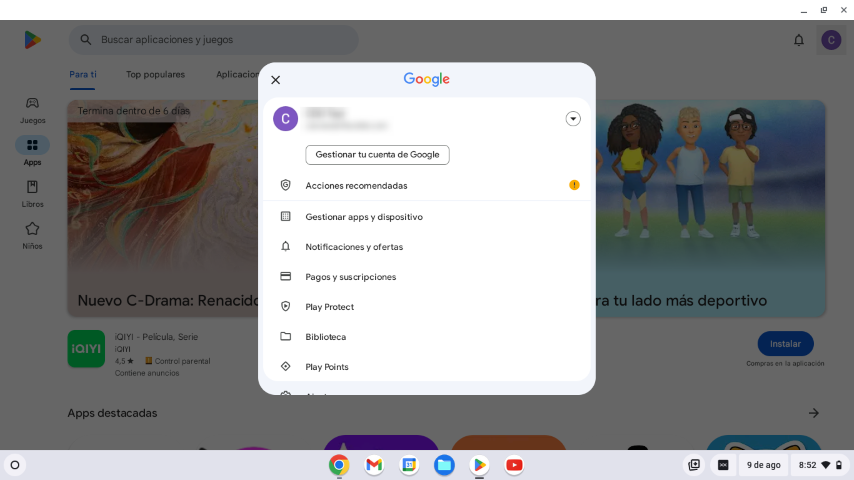
-
Go to the
Managetab and click on the FlexxAgent application.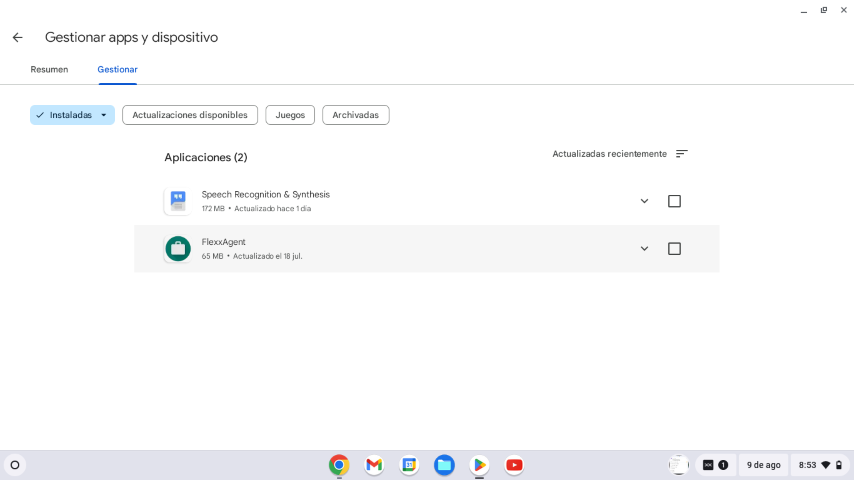
-
On the application's detail screen, click
Open. A window will appear next, confirming that the application has been correctly configured.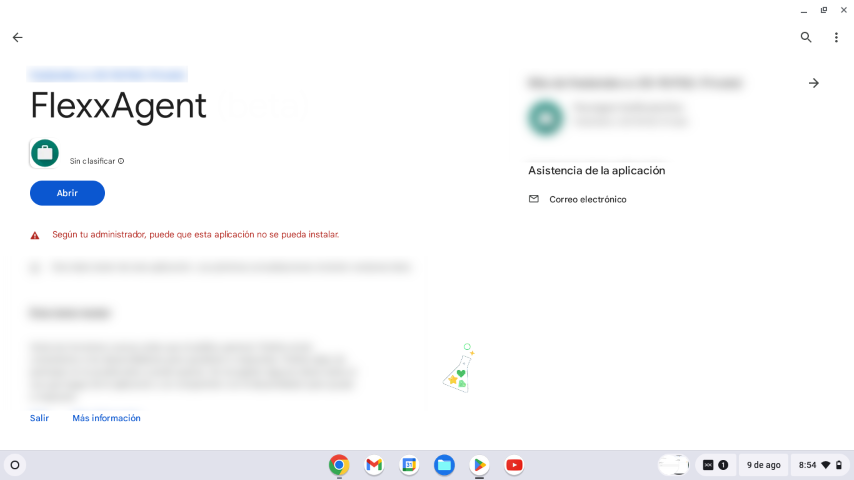
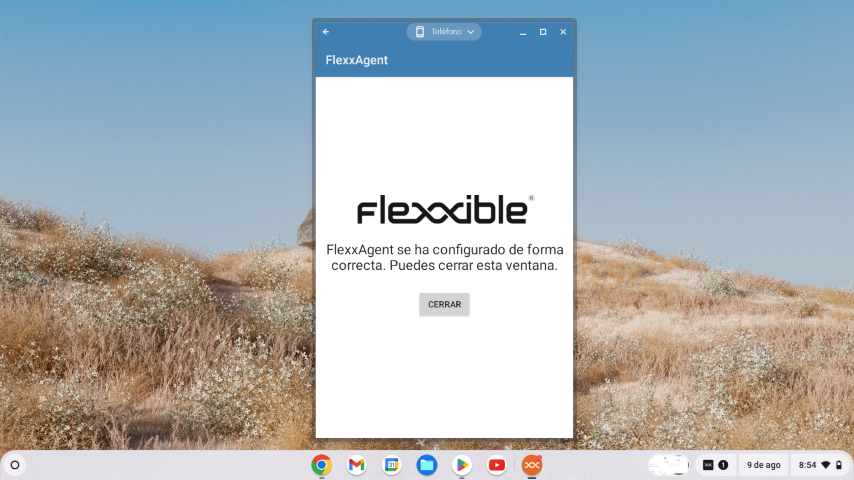
-
Close the window.
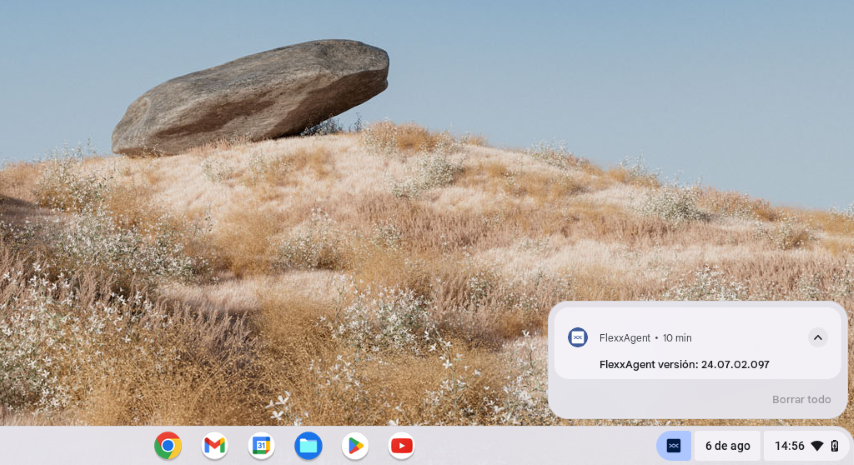
When running FlexxAgent on a ChromeOS device, the fixed notification indicates that the agent is installed and running.
Update
FlexxAgent updates automatically from Google Play.
Information obtained from the device
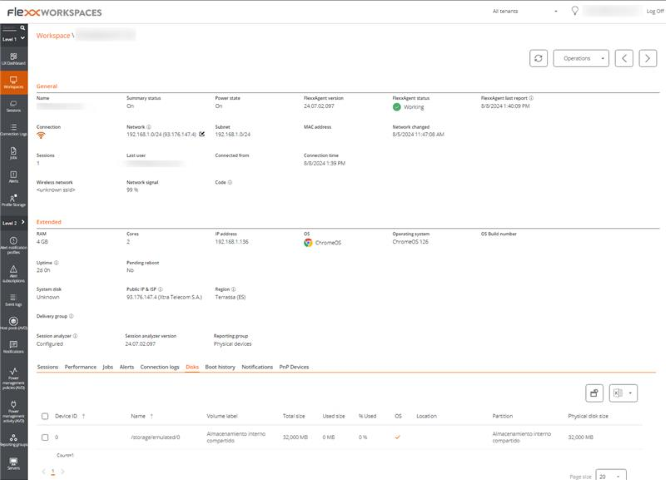
FlexxAgent collects data locally from the device and sends it to the service consoles.
General information
- Name. Device Name.
- Device Status. Power status of the device can be On, Off, or Not reporting.
- FlexxAgent Version. Version number of FlexxAgent installed on the device.
- FlexxAgent Status. Running or Stopped.
- Last FlexxAgent report. Date and time of the last FlexxAgent report on the device. This date might not be recent if the FlexxAgent service is stopped or the device is off.
- Connection Type. Indicates if the device is connected via Wireless LAN, Mobile Network, Ethernet, or Unknown.
- Network. Network addressing of the device and public IP for internet access. These networks are created automatically when more than four devices are connected to the same network.
- Network Signal. Network reception percentage.
- Subnet. Device's network addressing.
- Network Changed. Date and time of the last network change.
- Sessions. Number of user sessions on the device.
- Last User. Last user logged into the device in domain\account format.
- Connected From. When the selected device is a VDI or similar, shows the device name from which the virtual device is accessed.
- Connection Time. Date and time when the session started.
- Code. Lets identify the device with a personal code. This code must be manually filled in individually using the Edit option in the Operations menu of the workspace details.
- Description. Allows the user to identify the device with a personal description. This field must be assigned manually and individually using the Edit option in the Operations menu of the device details.
Extended Info
- RAM. Total capacity of available RAM.
- Cores. Number of processor cores.
- IP Address. Device's IP address on the local network.
- OS. Type of operating system.
- Operating System. OS version.
- Uptime. Time the device has been running since the last boot or reboot. If fastboot is enabled, the device is only off when it is restarted.
- Region. Obtained using the public IP. It might not be accurate if connected to a corporate network or using a VPN.
- Session Analyzer. Indicates whether or not it's configured to launch session Analyzer in all user sessions.
- Session Analyzer Version. Version number of Session Analyzer.
- Report Group. Reporting group to which the device belongs.
Information in tabs
FlexxAgent groups information about the following aspects of the device:
Sessions
Displays a table with the log of user sessions established on the device and timely information about the session type, connection status, or start date.
Jobs
All actions performed from the Workspaces module on one or more devices are audited in the Jobs queue. This tab allows you to check the work done for the active device.
Alert
Presents a table with the list of all active alerts on the device. When an alert is logged, a notice is displayed at the top of the page.

Connection Log
Presents a list of the connections established with the device, including each instance where a user logs in or reconnects a previously disconnected session.
The session end date is recorded only for sessions that have been disconnected or closed. While the session remains active, this field will remain empty.
Disks
Displays a list of all partitions present on the disks identified in the system, as well as statistics of their capacity and occupancy levels.
Notifications
Allows you to see if the device has any active notification. When there is one, a message is displayed at the top of the page.
Reporting groups history
Allows you to see which reporting groups the device belongs to, the date of incorporation, and if it has been assigned to the group manually or automatically.