Microsoft patch policies
If from Targets you can define when, how, and to whom updates are applied, from Microsoft Update Policies you can define what is updated; that is, you can manage the approval or denial of the installation of one or more updates from the Microsoft catalog on an organization's devices.
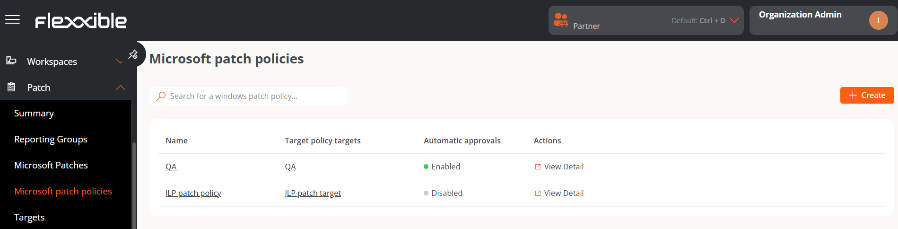
Create a new update policy
- Access
Portal->Updates->Microsoft Update Policies. - Click
Newat the top right of the interface. - Assign a name to the new policy in the form.
- Click on
Save. The name of the newly created policy will appear in the table, in addition to the following fields:
- Update policy targets. Targets configured with a Microsoft update policy.
- Automatic approvals. Indicates if the automatic approvals setting is Enabled or Disabled.
- Actions. Contains the
View Detailsbutton, to access five configuration scopes:
- Details
- Microsoft patches
- Automatic approvals
- Non-cataloged Updates
- Non-cataloged Automatic Approvals
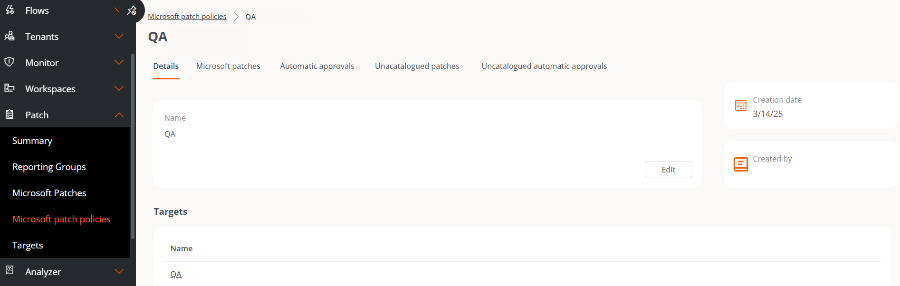
Details
Shows specific information about the policy being consulted:
- Name. Name of the policy.
- Targets. List of targets linked to the policy.
- Creation Date. Date when the policy was created.
- Created by. User who created the policy.
The Edit button opens a form to change the name of the policy or to delete it, if desired.
Microsoft patches
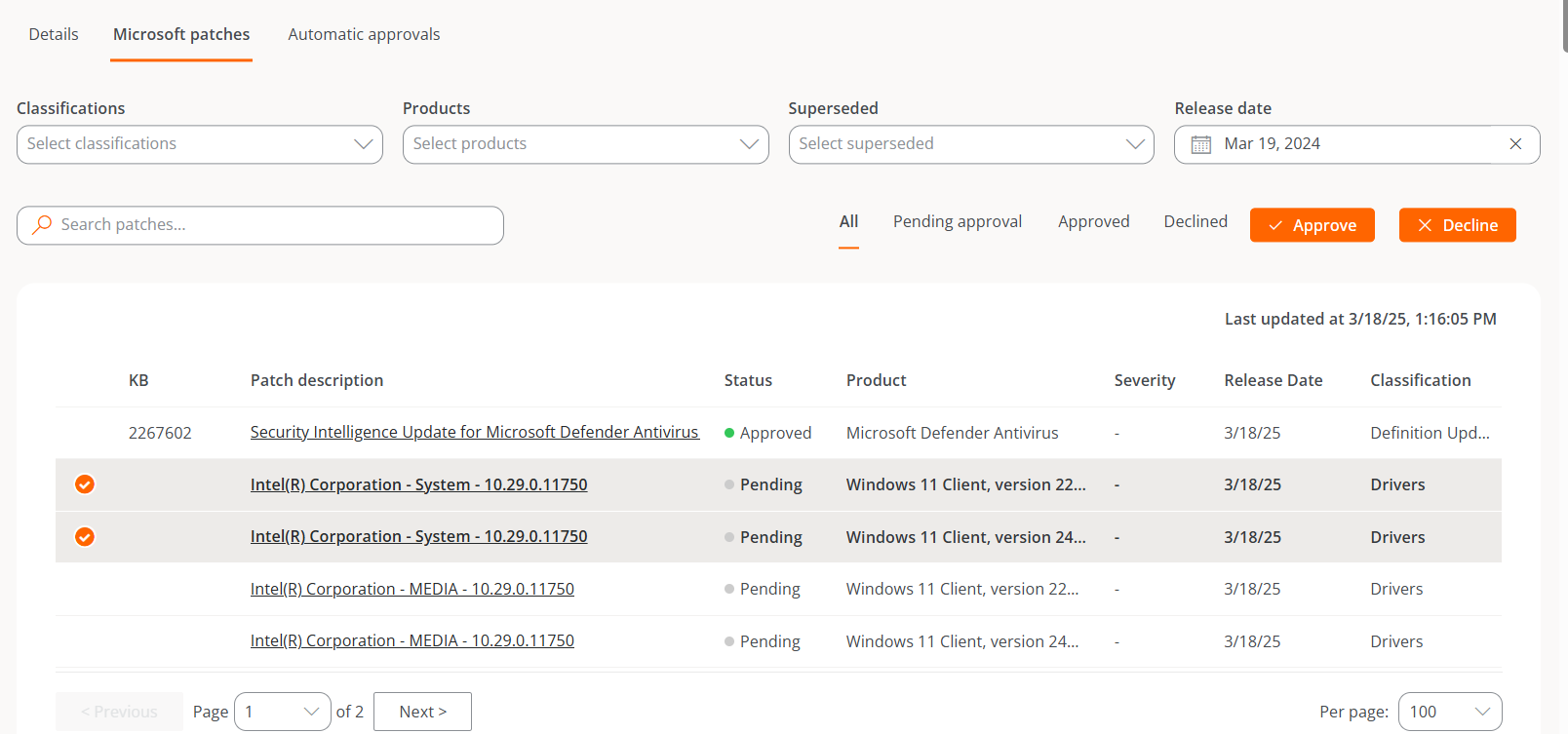
Shows a table with the list of Microsoft updates available for the linked target. The fields contain the following data:
- KB. Unique identifier assigned to the Microsoft update package. Some drivers or firmware do not have an assigned KB.
- Revision description. Link that directs to detailed information about the Microsoft update.
- Status. Approved, Rejected, or Pending.
- Product. Microsoft product to which the update applies.
- Severity. Level of urgency detected for executing the update.
- Release Date. Date from when the update is available.
- Classification. Category that corresponds to the update.
- Last Update. Date and time the list was last updated.
Above the table, there are several filtering options that allow listing the available updates according to Classifications, Products, Superseded, or Release Date.
It is also possible to search by character strings or filter by their Pending Approval, Approved, or Rejected status.
Approve or reject a Microsoft update
To approve or reject an update, select one or more entries available in the table and choose the desired action.
-
Clicking
Approveindicates that the update will be installed on the corresponding devices the next time an update process is executed according to the target configuration. -
Clicking
Rejectindicates that the update will attempt to uninstall during the next update process on devices that have it installed, in accordance with the target configuration.Not all updates can be uninstalled. The execution of this process depends on the device's update status and other factors. The result of the process will be available in the corresponding update task.
If a user defines a Microsoft update policy but does not manually or automatically approve or reject an update package, no installation or uninstallation activity will be generated on the devices.
Automatic Approvals
The table fields in this section contain the following information:
- Classification. Category of the update. It can be Updates, Critical Updates, Security Updates, Upgrades, Definition Updates, Drivers, Feature Packs, and Update Rollups.
- Products. Name of the product to which the update applies.
- Days after release. Number of days elapsed since the release date after which the update will be automatically approved.
- Actions. Contains the
View detailbutton, which opens a form to edit the automatic approval rule.
Create an automatic approval rule
It's possible to configure one or more automatic approval rules within the same update policy. To create a new rule:
- Access
Portal->Updates->Microsoft Update Policies. - Click the name of the policy.
- Go to the
Automatic Approvalstab. - Click
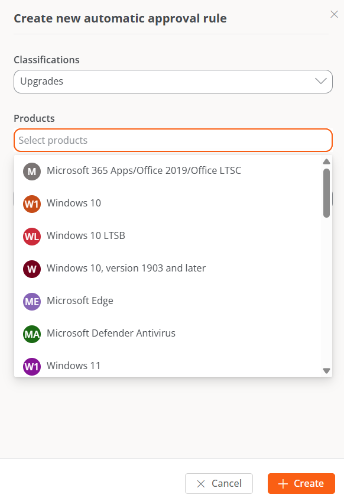
Newand define the following fields:
- Classifications. Distinguish updates by their category: Updates, Critical Updates, Security Updates, Upgrades, Definition Updates, Drivers, Feature Packs, and Update Rollups.
- Products. Allows selection of the Microsoft product to which the update applies.
- Days after release. Specify how many days after the release date the update will be automatically approved.
Once configured, each automatic approval rule updates every 6 hours, at the following times: 00:00, 06:00, 12:00, and 18:00.
Flexxible recommends setting up automatic approval rules whenever a new update policy is created, but not applying that policy to the target until the updates you want to consider as a starting point are approved.
In this way, when the policy is applied, it will start from a stable scenario where all previous updates are already approved for user devices.
Unlisted updates
The global list of pending updates on the device can be consulted at Microsoft Updates; however, there are certain patches that the device may report as pending, but do not appear on that list.
Unlisted Updates correspond to these cases. These are pending updates that could be related to Microsoft features, but do not have an exact match with the entries in the Microsoft Updates list.
The list of unlisted updates is displayed at the tenant level.
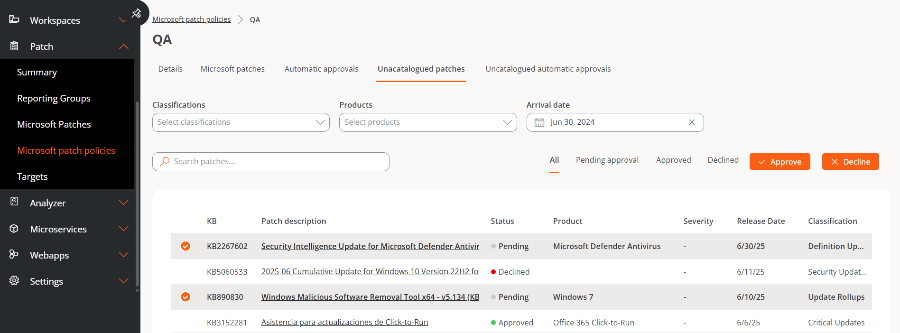
The fields of the table contain the following data:
- KB. Unique identifier assigned to the Microsoft update package. Some drivers or firmware do not have an assigned KB.
- Revision description. Link that directs to detailed information about the Microsoft update.
- Status. Approved, Rejected, or Pending.
- Product. Microsoft product to which the update applies. In this type of updates, it is possible that the product is not informed since, at times, the data is not provided by the devices.
- Severity. Level of urgency detected for executing the update.
- Release Date. Date from when the update is available.
- Classification. Category that corresponds to the update.
Above the table, there are several filtering options to list the available updates according to Classifications, Products, or Date of arrival.
It is also possible to search by character strings or filter by their Pending Approval, Approved, or Rejected status.
Approve or reject an unlisted update
To approve or reject an unlisted update, select one or more entries available in the table and choose the desired action.
-
Clicking
Approveindicates that the update will be installed on the corresponding devices the next time an update process is executed according to the target configuration. -
Clicking
Rejectindicates that the update will attempt to uninstall during the next update process on devices that have it installed, in accordance with the target configuration. Not all updates can be uninstalled; the execution of this process depends on the update status of the device and other factors. The result of the process will be available in the corresponding update task.
Unlisted automated approvals
It's possible to set up automatic approval rules to apply unlisted updates.
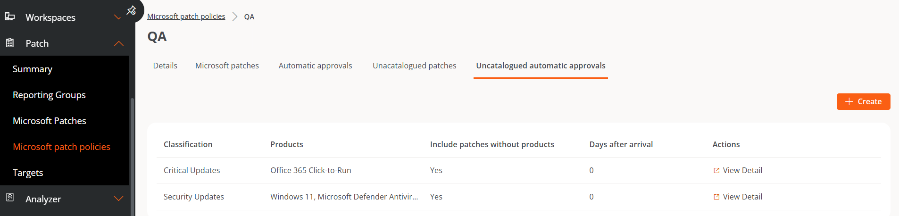
Create an automatic approval rule for unlisted updates
- Access
Portal->Updates->Microsoft Update Policies. - Click the name of the policy.
- Go to the
Unlisted automated approvalstab. - Click
Newand define the following fields:
- Classifications. Distinguish updates by their category: Updates, Critical Updates, Security updates, Upgrades, Definition updates, Drivers, Feature packs, and Updates Rollups.
- Products. Products reported by the devices.
- Include updates without products. By checking this option, updates that don't have a product will be considered.
- Days after arrival. Specify how many days after the update arrives in the list it will be automatically approved.
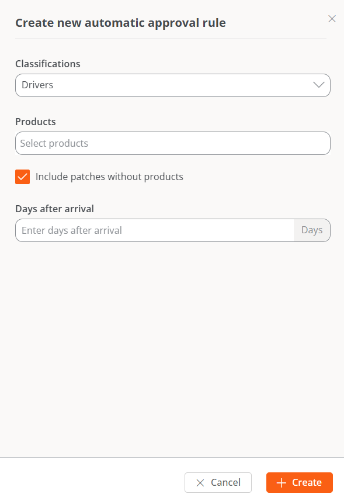
The fields of this section's table contain the following data:
- Classification. Category of the update. It can be Updates, Critical Updates, Security updates, Upgrades, Definition updates, Drivers, Feature packs, and Updates Rollups.
- Products. Reported product name.
- Include updates without products. Indicate whether the automatic approval rule includes updates without products.
- Days after arrival. Numeric value indicating how many days after the update arrives in the list it will be automatically approved.
- Actions. Contains the
View detailsbutton, which opens a form to edit the automatic approval rule being viewed.
Unlisted Updates and Unlisted Automatic Approvals are available starting from version 25.6 of FlexxAgent.