Sessions
The Sessions view allows you to monitor the status of active and disconnected user sessions and obtain operational information about their activity.
It offers the following data:
- Which users are connected.
- Which virtual desktop they are using.
- Which catalog and delivery group they belong to.
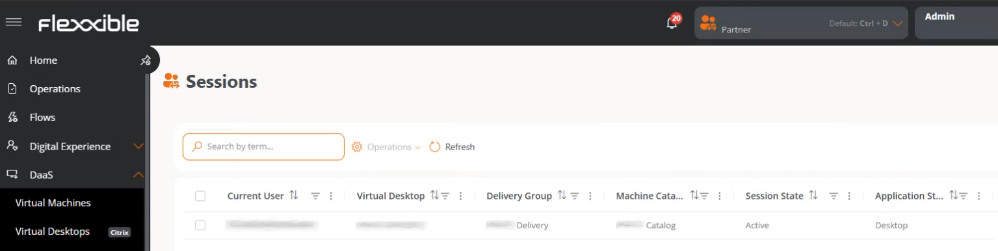
Table info
- Current User. Name of the connected user.
- Virtual Desktop. Name of the assigned virtual resource.
- Delivery Group. Associated group.
- Machine Catalog. Name of the associated catalog.
- Session Status. Active or Disconnected.
- Application Type. Type of resource used by the user.
Available operations
This view allows executing actions on one or more selected sessions.
| Operation | Action | Caption |
|---|---|---|
| Session Actions | Log off | Completely ends the user's session on the machine, closing applications and freeing resources. |
| Disconnect | Disconnect the active session (for example, an ICA connection), keeping the session in the background so the user can reconnect later. |
Steps to execute an operation
-
Access
Portal->DaaS->Sessions. -
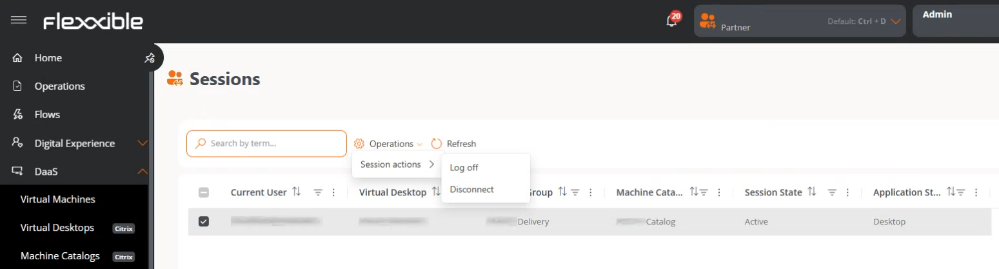
In the table, select one or more sessions you want to perform the action on.
-
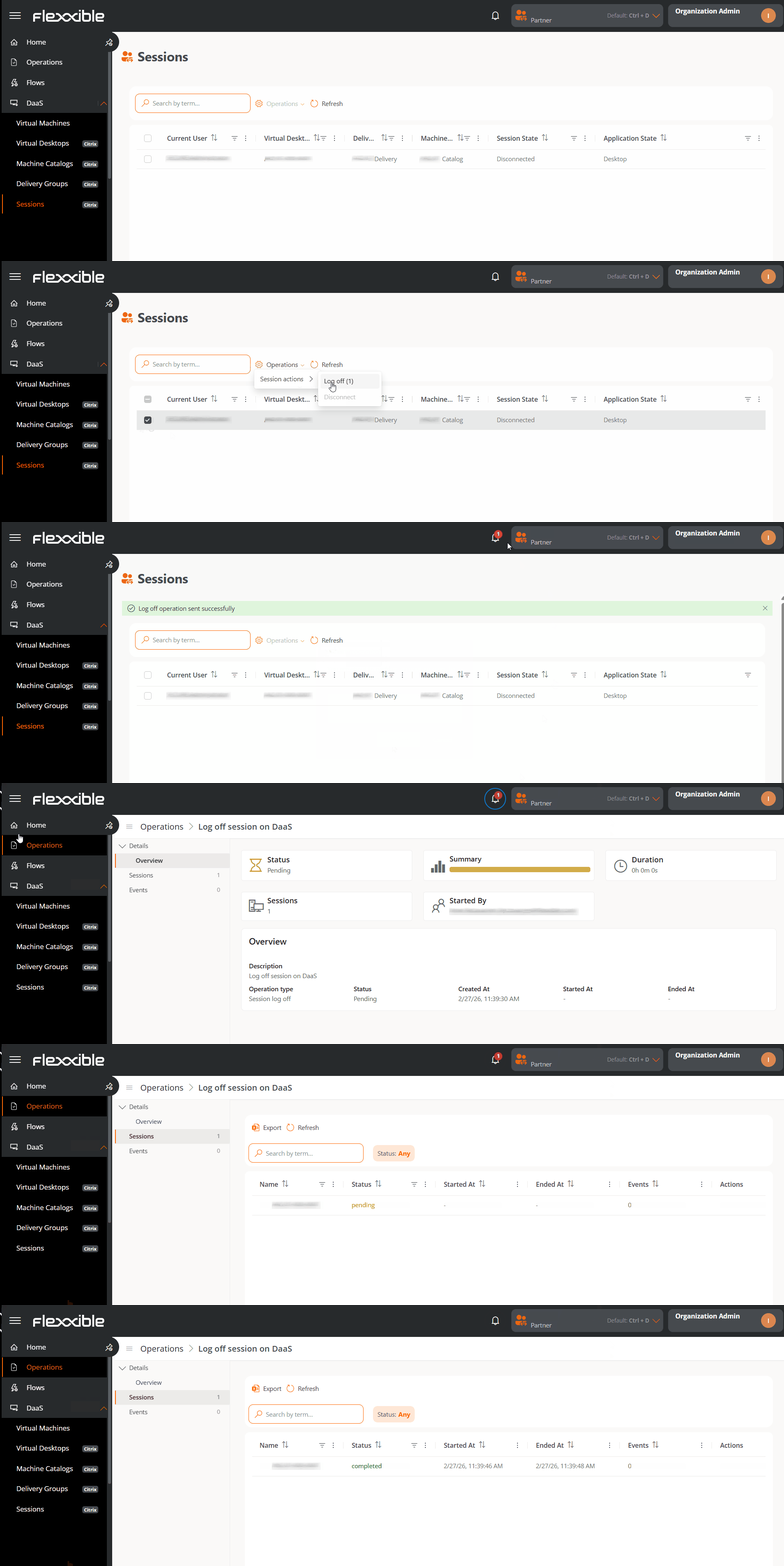
Click the
Operationsbutton. -
Select the appropriate action.
The number that appears in parentheses next to each action indicates the number of sessions it can be applied to.
-
Confirm the operation in the pop-up window.
Tracking Operations
Once the action is confirmed, the user can check its status by clicking the notification icon (bell) located next to the organization's name.
Each action generates a separate entry per session in the Operations section, where it is possible to review the status and result of each execution.