Wake on LAN (WoL)
WoL is a network standard that allows devices to be powered on remotely via Ethernet, as long as the hardware and system configuration support it.
In Portal and Workspaces, WoL allows automatic, scheduled, or on-demand powering on of physical devices, using another device with FlexxAgent installed on the network as a bridge. This will be responsible for sending the magic packet necessary to activate the target device within the local network.
Requirements
- Compatible network card.
- Enable WoL in BIOS/UEFI.
- Set up WoL in the operating system.
- A bridge device — with FlexxAgent installed and reporting — on the same network as the device you want to turn on.
WoL normally operates within a local network and can work across subnets as long as there are no restrictions imposed by firewalls or network devices that block the transmission of the magic packet. In environments with subnet segmentation, it's necessary to configure network-level exceptions that allow the magic packet to be routed between those subnets.
Set up WoL in Windows
To set up WoL on a Windows operating system device, you should follow these steps:
- Check if WoL is active.
In the CMD window, execute the following command:
powercfg /devicequery wake_programmable
- Enable WoL.
Run the command:
powercfg /deviceenablewake "Realtek PCIe GbE Family Controller"
Replace "Realtek PCIe GbE Family Controller" with the name of the corresponding driver.
Available actions
When the functionality has been correctly enabled and configured, the following actions will be available:
- Power on devices on demand from Workspaces
- Schedule the Startup in Workspace Groups
- Schedule power on after applying updates
- Set up devices for Wake on LAN (WoL) in Reporting Groups
Power on devices on demand from Workspaces
- Access the Workspaces module.
- Select one or more devices you want to execute the power-on operation on.
- Click
Operations->Power and connection actions->Turn on (Wake on LAN).
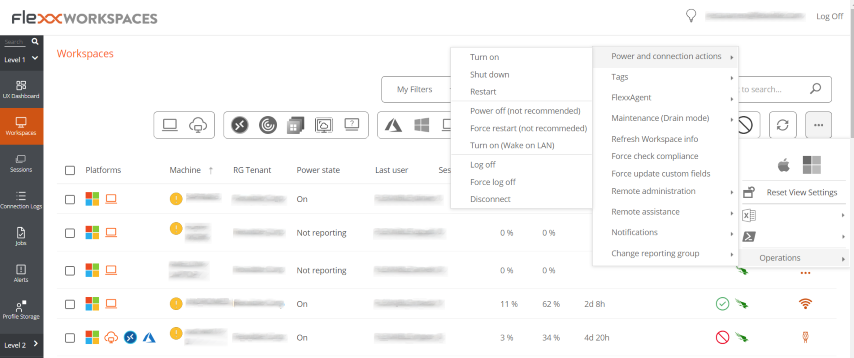
Schedule the Startup in Workspace Groups
- Access 'Portal' -> 'Workspaces' -> 'Workspace Groups'
- Select the workspace group you want to schedule the power on for.
- Click on the
Scheduletab. - Click the
Newbutton and fill out the form.- Action. Allows you to choose between Wake on LAN or Shut down. If the first option is selected, you can activate
Use specific Workspace for WoLat the bottom of the form to schedule the power on for a specific device. - Day of the week. Day of the week when the action will be performed.
- UTC time. Exact time to start the action.
- Action. Allows you to choose between Wake on LAN or Shut down. If the first option is selected, you can activate
- Click on
New.
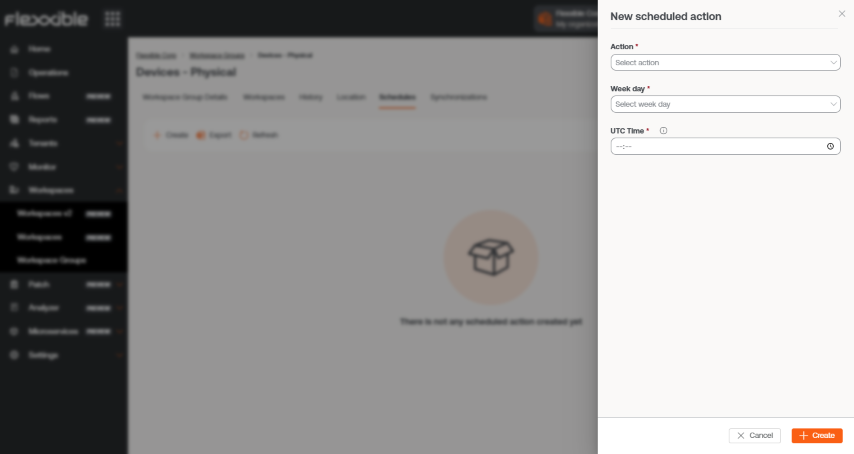
The data entered will be reflected in the table, along with the email of the user who created and updated the schedule. From View details you can edit and delete the scheduled action.
Schedule power on after applying updates
- Access 'Portal' -> 'Workspaces' -> 'Updates' -> 'Recipients'.
- In the table, choose the recipient.
- In the
Detailstab click on theEditbutton. - Activate the
Wake on LAN (WoL)option in the form. - Click on
Save.
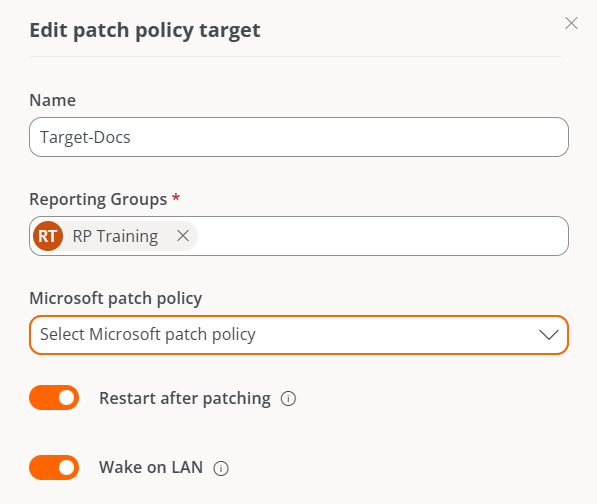
Set up devices for Wake on LAN (WoL) in Reporting Groups
This functionality allows defining specific devices that will execute auto power-on via Wake on LAN (WoL) in the selected reporting groups.
Settings
It's possible to set up to three devices for WoL execution, in case the process fails on one of them.
- Go to
Portal->Settings->Reporting Groups. - In the table, select one (or more) reporting groups.
- Click on
Configure workspaces for WoL. - In the form, select the preferred devices that will handle turning on the machines via WoL.
- Click
Saveto apply the changes.
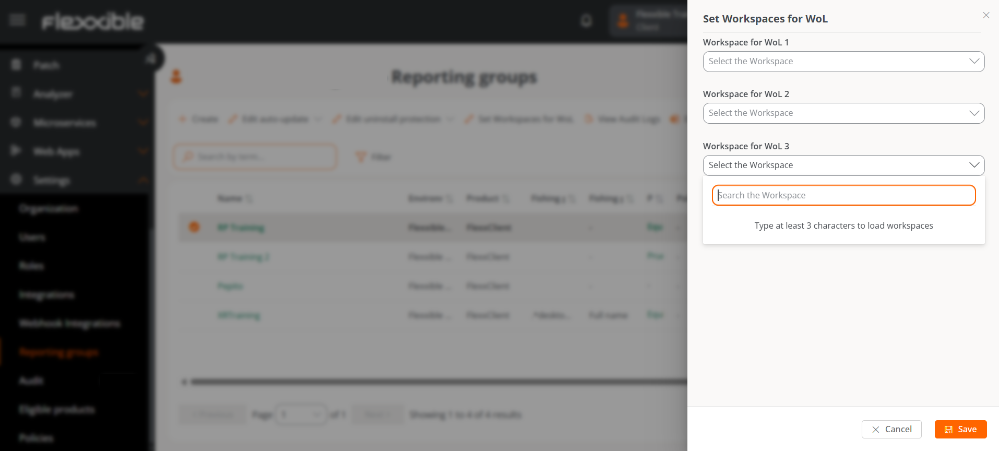
When several reporting groups are selected and one or more of the three form fields are left empty, they will also be saved as empty in those groups that previously had configured values.
Remove the configuration of WoL devices
To remove the devices associated with the WoL configuration:
- Select the corresponding reporting group again.
- Click
Set up workspaces for WoL. - Leave the three fields empty.
- Click
Saveto confirm the deletion.