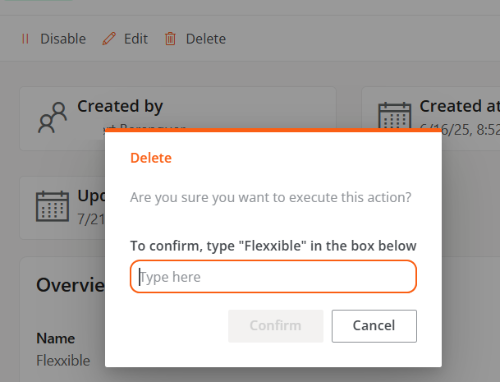
Web Apps Metrics
This section provides an overview of the status of all web-enabled apps within the organization. Its aim is to provide quick access to key performance and usage metrics, allowing for early detection of issues.
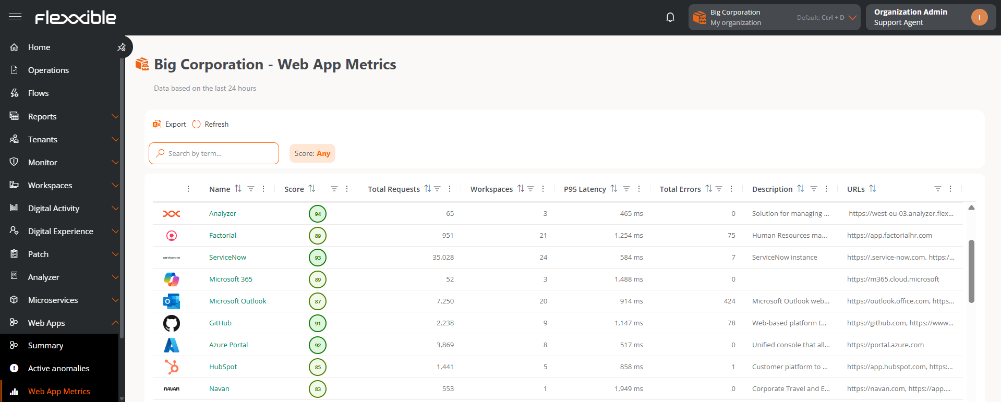
Enabled Apps Table
Displays information corresponding to the last 24 hours:
-
Name. Main identification of the web application. It is clickable and allows access to its detail view.
-
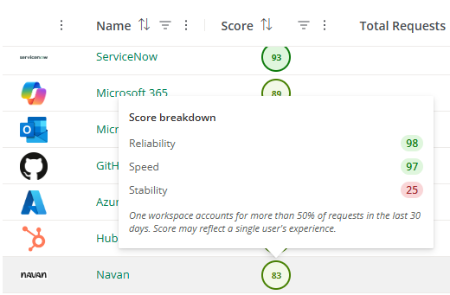
Experience Index. Metric reflecting the overall quality of the web application from the end-user's perspective. Hovering over the score, you can see the breakdown of the value according to Reliability, Speed, and Stability.
-
Total Requests. Total number of requests made by users to the application.
-
Workspaces. Total number of unique devices that have reported activity on the application.
-
P95 Latency. Maximum response time in which 95% of the requests made to the web application are completed.
-
Total Errors. Total number of errors recorded during requests.
-
Description. Descriptive summary of the application.
-
URL. Web addresses linked to the application.
Web Application Detail
Selecting an application grants access to its detail view, composed of the following sections:
Details
Presents general information about the web application.
Summary Panel
- Created by. User who registered the application.
- Created on. Date and time of creation.
- Updated by. User who made the last modification.
- Updated on. Date and time of the last update.
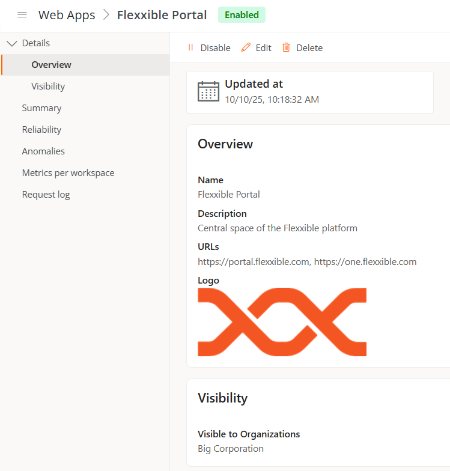
Overview
Includes the main information of the application:
- Name. Application Identification.
- Description. Descriptive summary.
- URL. Linked web addresses.
- Logo. Identifying image.
Visibility
Indicates the organizations and sub-organizations where the web application is available.
Summary
Displays the experience index that reflects the web application, as well as general access statistics based on user requests.
Experience Index
The result of the experience index is represented by a score between 0 and 100, based on an average of the last 30 days (weighted according to the web application's usage during this period).
Based on the obtained score, the web application is classified as follows:
- 90–100 — Excellent (Green)
- 75–89 — Good (Light green)
- 60–74 — Average (Yellow)
- 40–59 — Poor (Orange)
- 0–39 — Critical (Red)
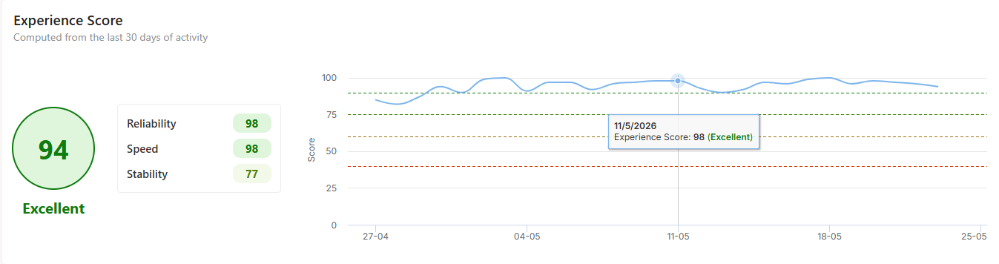
Additionally, when applicable, it's also indicated:
- Insufficient data. The recorded request volume is not enough to calculate a representative index. Not calculated to avoid imprecise results.
- No data. No activity has been recorded in the web application during the analyzed period.
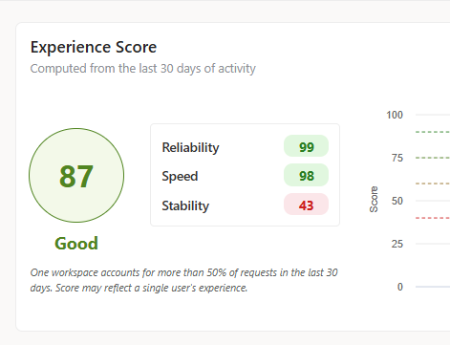
In case of a clearly dominant user, i.e., one that accounts for more than 50% of the requests, this information is also displayed to provide additional context.
Summary
Summary Panel
Displays the following quantitative values:
- Requests
- Errors
- Latency
- Workspaces
Time Interval
The information can be consulted for the following periods:
- Last 24 hours
- Last 7 days
- Last 14 days
Graphs
Two pie charts are presented showing success rates and failed requests.
Failed requests are classified into Client Errors (4xx), Server Errors (5xx), and Network Errors.
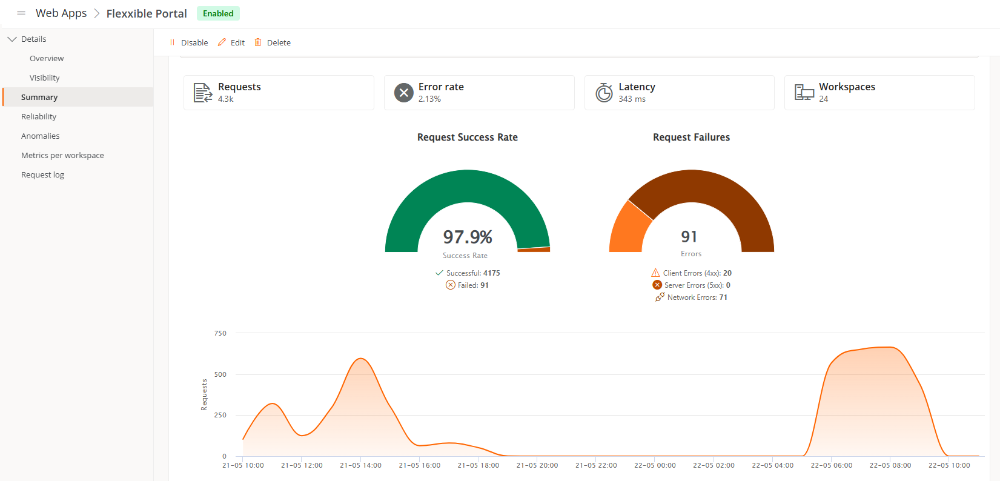
Request Evolution:
- Includes a line chart representing the evolution of requests during the selected period.
- Hovering over a data point on the chart displays the values corresponding to the selected date and time.
Reliability
This section presents line graphs aimed at analyzing the behavior and stability of the web application:
The graphs show:
-
P95 Latency (ms) of total requests
-
Errors recorded during access
-
Error rate
-
Workspaces
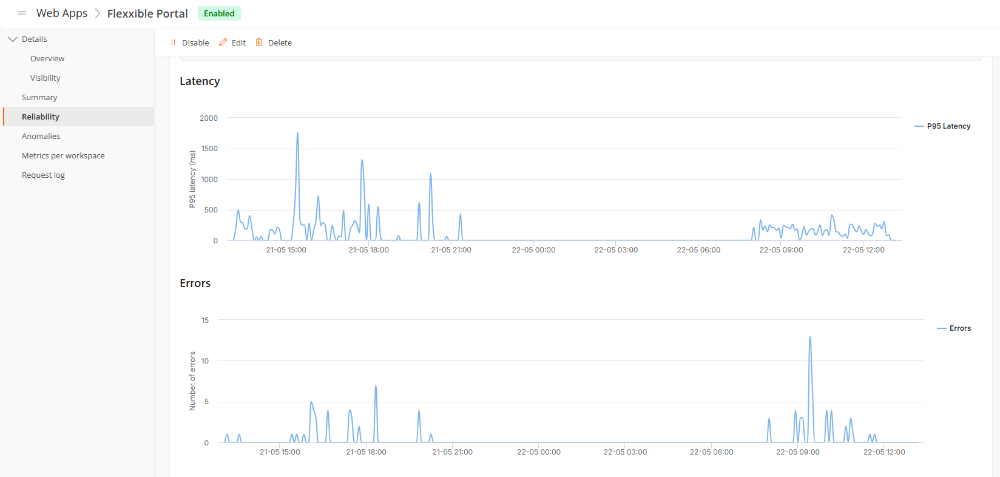
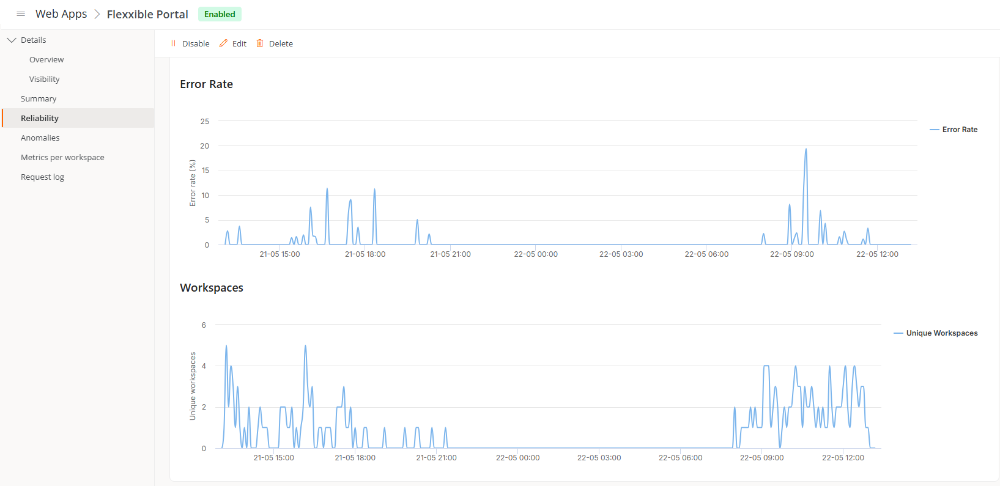
The information adapts to the selected time interval, applied filters, and configured segmentation.
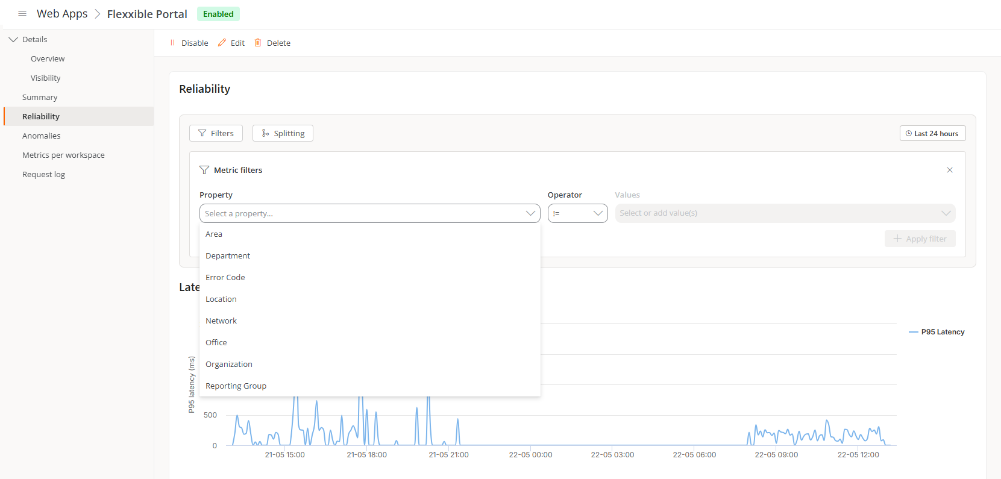
Time Interval
The information can be consulted for the following periods:
- Last 24 hours
- Last 7 days
- Last 14 days
- Last 30 days
- Last 90 days
Filters
The metric filters enable detailed analysis of latency and errors through the following parameters:
- Property. Report Group, Network, Location, Area, Department, Office, Organization, and Error Code.
- Operator. = (Equal to) and != (Not equal to).
- Values. Depend on the selected property.
Division
Allows segmentation of the information displayed in the graphs according to different properties.
Available configuration:
- Property. Report Group, Network, Location, Area, Department, Office, Organization, and Error Code.
- Limit. Allows displaying between 1 and 100 divisions per property.
- Sort. Allows changing the order to Ascending or Descending.
This level of segmentation facilitates the identification of device groups where latency or error issues are concentrated.
Anomalies
This section allows comparing the usual performance of a web application with the behavior detected in the last 48 hours, facilitating anomaly detection.
To determine the values considered usual, the system performs prior training based on historical data from 15 to 30 days. Based on this analysis, the normal range of behavior for each metric is established.
Summary Panel
Displays the following quantitative indicators:
- Total anomalies
- Anomalies in requests
- Error anomalies
- Latency anomalies

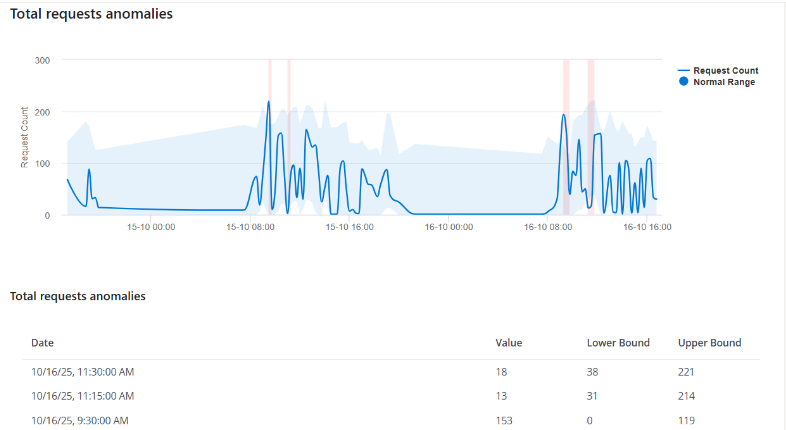
Total anomalies in requests
This chart compares the quantity of requests detected with the expected normal range over a 48-hour period.
- Blue Shadow. Represents the usual request range.
- Blue Line. Shows the requests recorded during the last 48 hours.
- Red Shadow. Indicates intervals where an anomaly has been detected.
When the blue line exceeds the normal range represented by the blue area, it is interpreted that the volume of requests is higher than the expected behavior.
Anomalies in total errors
This chart compares the number of errors detected with the expected normal range over a 48-hour period.
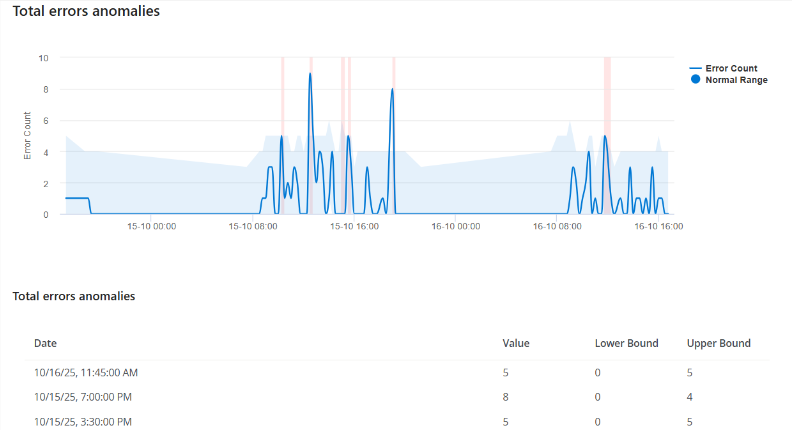
- Blue Shadow. Represents the usual error range.
- Blue Line. Shows the errors detected during the last 48 hours.
- Red Shadow. Indicates intervals with anomalous behavior.
When the blue line exceeds the usual range, it means that more errors have been recorded than expected.
Anomalies in average latency
This chart represents the evolution of average latency compared with its usual range.
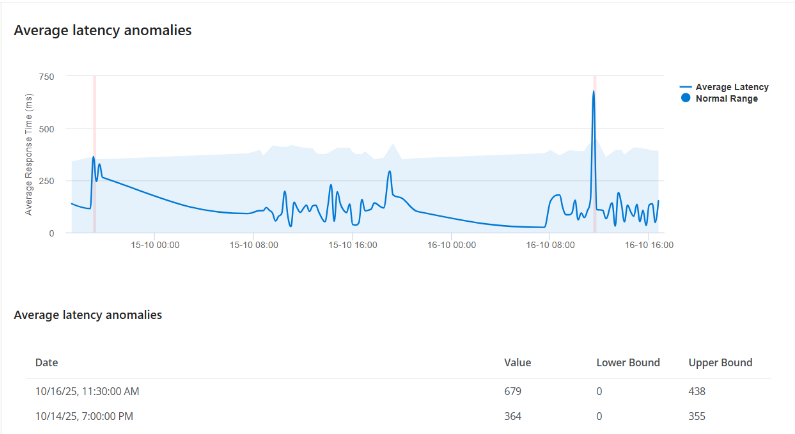
- Blue Shadow. Represents the normal latency range.
- Blue Line. Shows the latency recorded during the last 48 hours.
- Red Shadow. Indicates periods where an anomaly was detected.
When the blue line exceeds the usual range, it is interpreted that the application presents response times higher than normal.
Legends
The legends allow toggling the visualization of the different elements of the chart:
- Normal Range. Shows the expected normal range.
- Number of Requests. Displays the actual recorded values.
Hovering over a data point on the chart displays the values corresponding to the selected date and time.
Tables
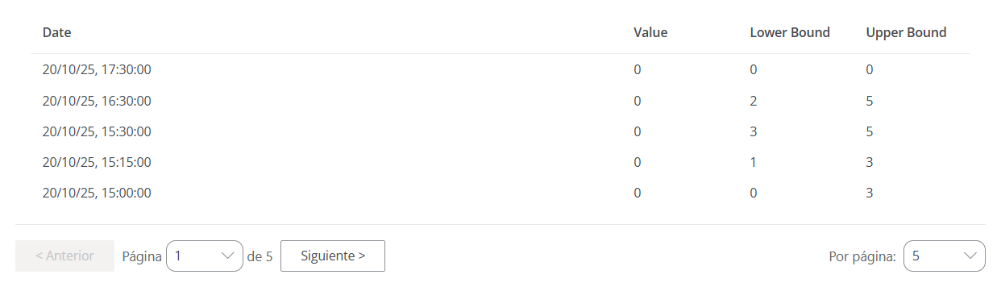
Below each graph, a table is displayed with details of the detected values.
- Date and Time
- Value
- Lower Limit
- Upper Limit
Metrics by Workspace
Allows analyzing the behavior of specific devices in relation to a web application.
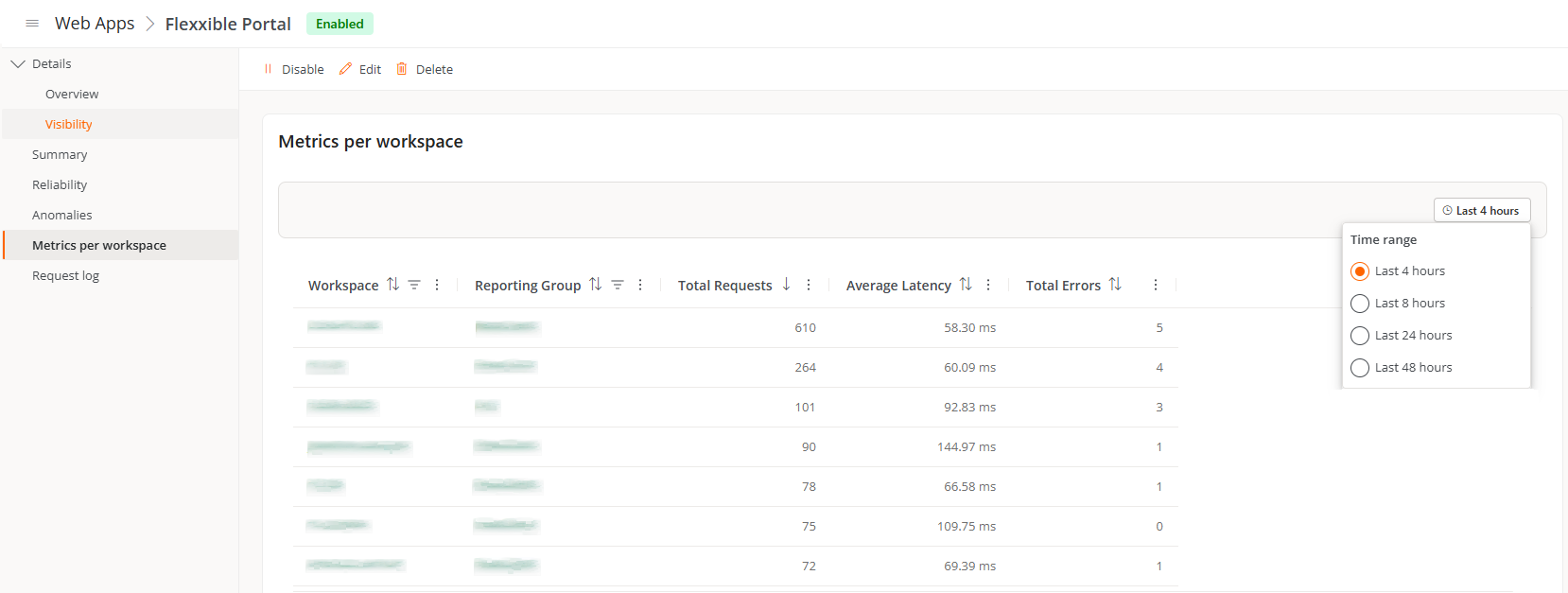
Table content:
- Workspace. Name of the device that made the requests.
- Report Group. Group to which the device belongs.
- Total Requests. Number of requests made.
- Average Latency. Average response time in milliseconds.
- Total Errors. Total number of recorded errors.
Selecting the device name or report group grants access to its detail view.
Time Interval
The information can be consulted for the following periods:
- Last 4 hours
- Last 8 hours
- Last 24 hours
- Last 48 hours
Request Log
Provides detailed information about the requests and HTTP messages exchanged between the user's device and the server.
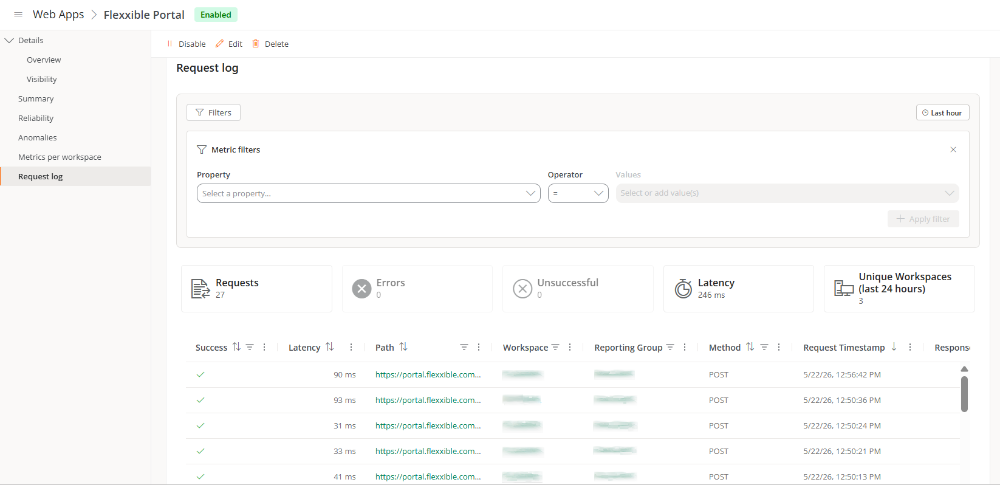
Table Information:
- Correct. Indicator of successful (✅) or failed request (❌).
- Latency. Response time in milliseconds.
- Path. Requested address.
- Workspace. Device from which the request was made.
- Report Group. Group to which the device belongs.
- Method. HTTP method used.
- Timestamp. Date and time of the request.
- Response Error Code. Error code detected, when applicable.
- Response Error Message. Detailed description of the recorded error.
- Status. HTTP status code returned by the server.
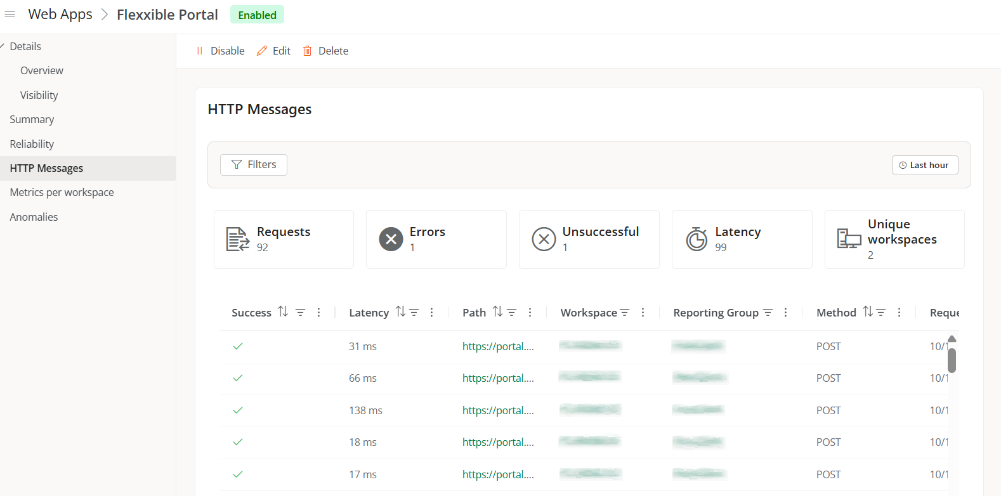
Time Interval
Data can be filtered according to the following periods:
- Last 1 hour
- Last 4 hours
- Last 8 hours
Filters
The metric filters enable analysis of requests through:
- Property. Report Group, Network, Location, Area, Department, Office, Organization, and Error Code.
- Operator. = (Equal to) and != (Not equal to).
- Values. Depend on the selected property.
Summary Panel
Displays the following quantitative indicators:
- Requests
- Errors
- Failed requests
- Latency
- Unique Devices

Actions on Web Applications
This options menu allows:

Enable or Disable a Web Application
Allows enabling or disabling a web application within the organization. You can find more information here.
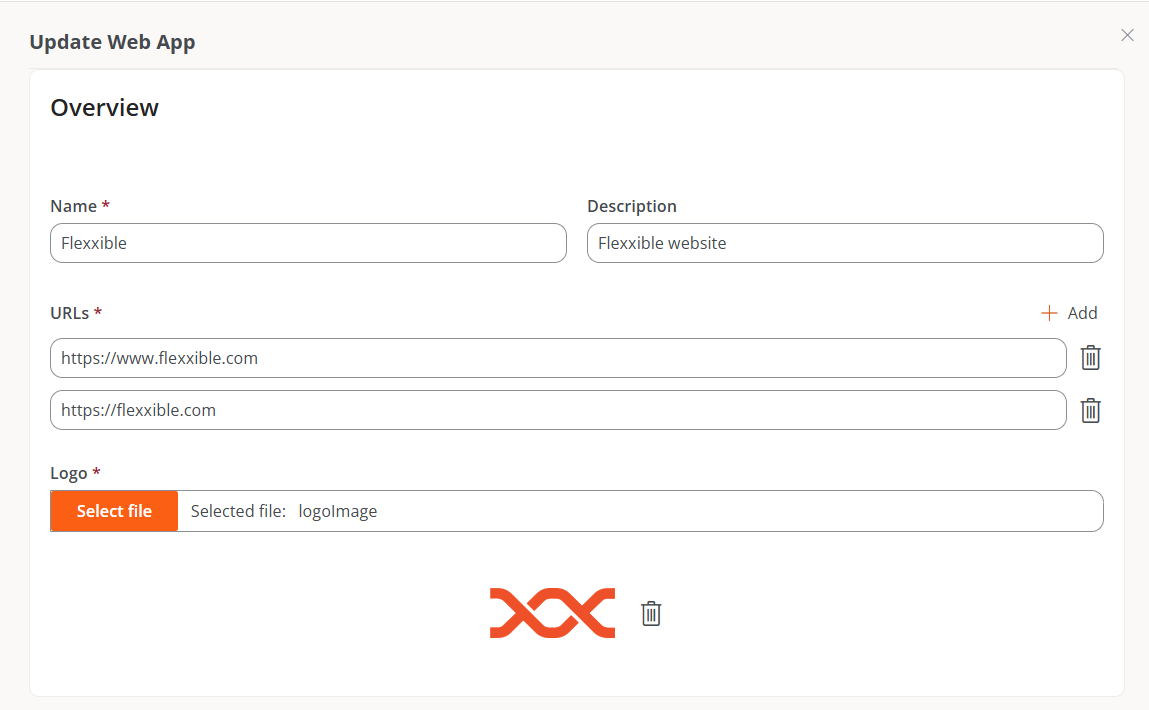
Edit
Opens a form to modify the web application information.
Overview
- Name. Application Identification.
- Description. Descriptive summary.
- URL. Linked web addresses.
- Logo. Identifying image.
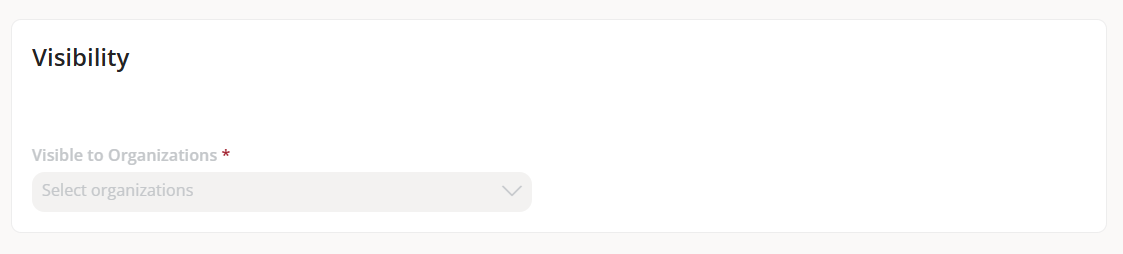
Visibility
Allows defining the organizations and sub-organizations where the application will be available. The visibility of an application does not necessarily mean it is enabled.
If an organization's visibility is removed, the application will no longer be available, even if historical data is associated.
Delete
When deleting a web application:
-
It is no longer visible in any organizations where it was available, except in the organization where it was created.
-
In the creating organization:
- The application remains visible.
- It stops collecting new data.
- Historical data remains available for a maximum of 120 days.
- After that period, the application will no longer be displayed.
-
If the application never collected data, it will disappear immediately from all organizations.