Process configuration
Process configuration allows you to define which processes are considered relevant to the business, facilitating a more precise analysis of device usage.
Through Core Process Groups, the organization can establish which processes are part of its main activity (core process). And with that know:
- How long devices are used according to those processes
- If devices are used for the intended purpose
- Which tools are actually used in each department
General considerations
- The process configuration is optional.
- It is configured by Workspace Group.
- A device can belong to several Workspace Groups and therefore to several Core Process Groups.
- Allows segmenting the analysis by areas or departments.
- Changes made are applied at 12:00 (UTC).
- Processes may be added manually or from executables reported by devices.
Table info
The main table shows the Core Process Groups configured in the organization.
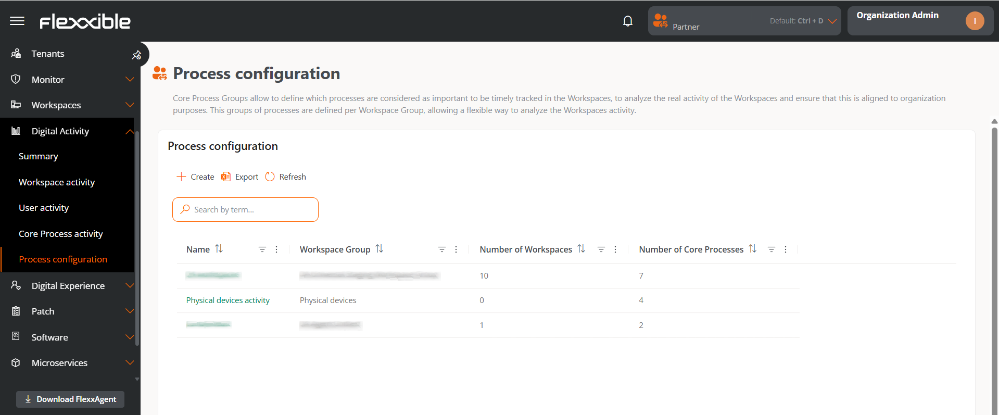
Includes the following fields:
- Name. Name of the Core Process Group.
- Workspace Group. Workspace Group associated with the Core Process Group.
- Number of workspaces. Number of devices included in the Workspace Group.
- Number of processes. Number of processes defined within the Core Process Group.
Create Core Process Group
To create a new Core Process Group:
-
Access
Portal->Digital Activity->Process configuration. -
Click
Create. -
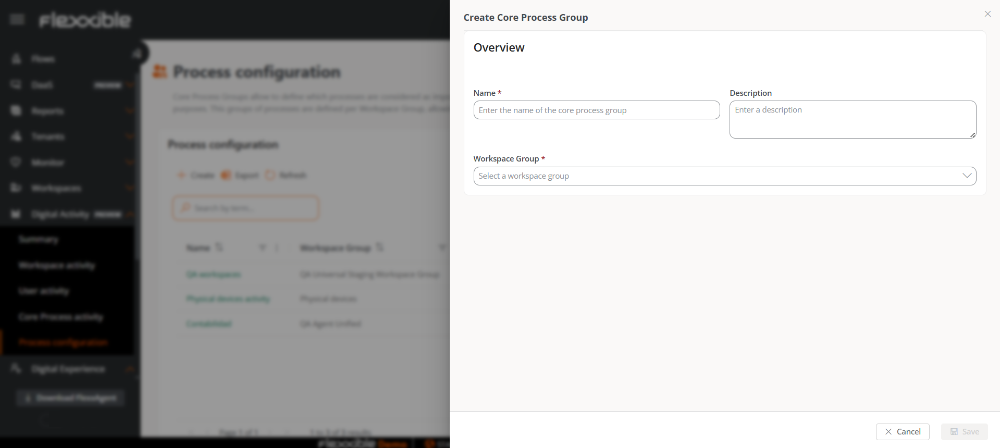
Complete the following fields:
- Name. Name of the Core Process Group.
- Description. Descriptive text of the group.
- Workspace Group. Workspace Group to be associated.
-
Click on
Save.
The group will appear in the table. It may be necessary to click Reload to update the view.
Add processes
Once the Core Process Group is created, you need to add the processes you want to monitor.
-
In the table, click on the name of the Core Process Group that has just been created. It is clickable and allows access to its configuration.
-
Access the
Processessection. -
Select one of the following options (or both):
Add Core ProcessAdd from running processes
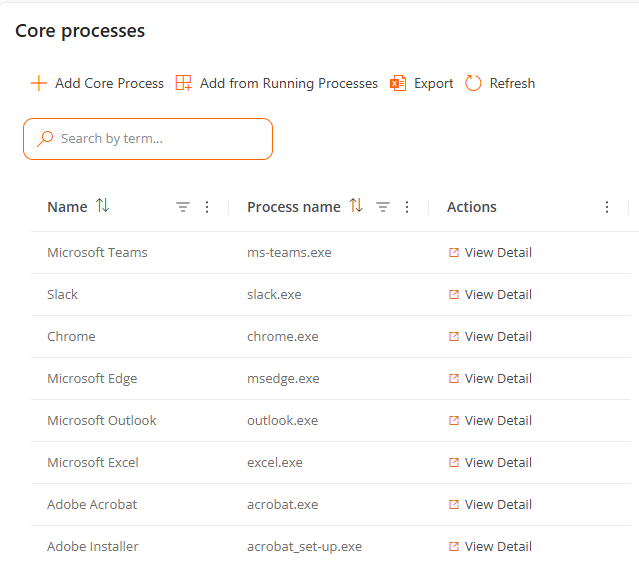
- Add Core Process allows you to manually add a process:
- Defining an identifying name.
- Indicating the executable (
.exe).

- Add from running processes allows selecting processes that have already been detected in devices.
- Shows processes previously reported by devices.
- Facilitates configuration based on existing processes.

Process table
Once added, the processes are shown in a table with the following fields:
-
Name. Name assigned to the process by the user.
-
Process name. Name of the executable (
.exe) -
Actions. Link to
View details. Allows editing the name and the executable.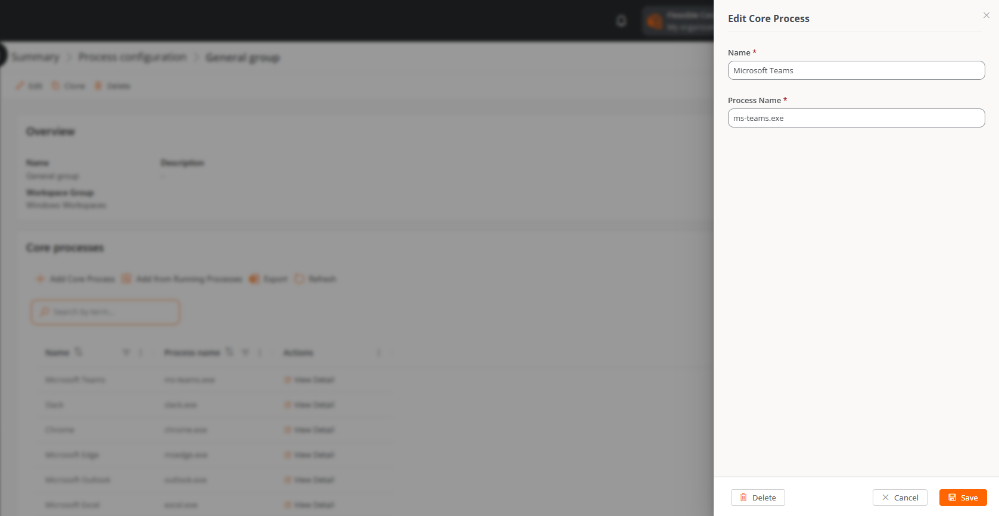
Available actions for Core Process Groups
The following actions can be performed on each Core Process Group:

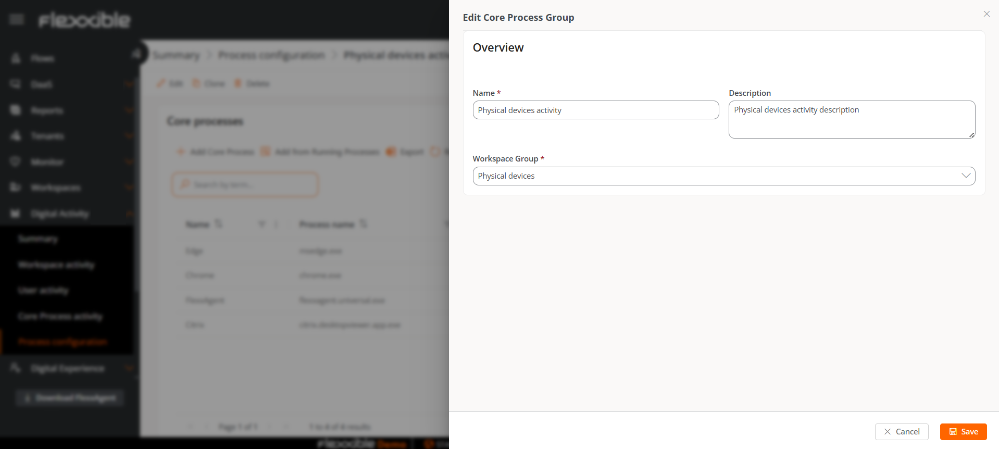
Edit
Allows modifying the Name, Description, and Workspace Group assigned during the process of Create Core Process Group.
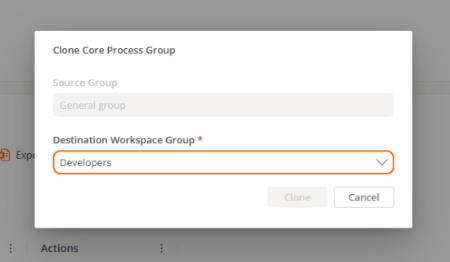
Clone
Allows creating a new Core Process Group based on an existing one. It is useful for reuse configurations; can be assigned to another Workspace Group.
Delete
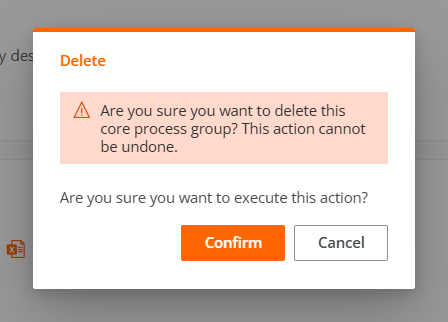
Allows deleting the Core Process Group.